
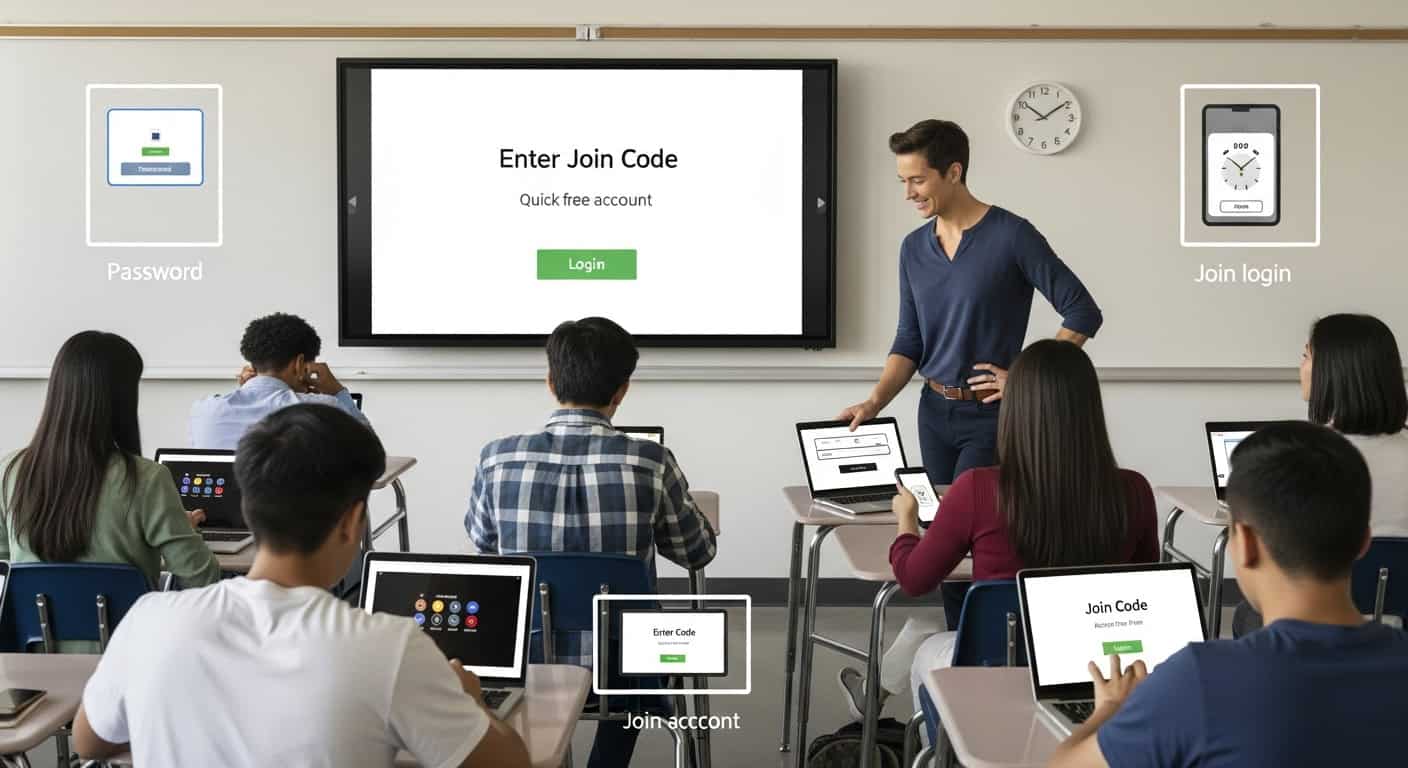
Losing the first eight minutes of a 45-minute class period because three students forgot their Google passwords and two Chromebooks are stuck on a spinning login wheel is every teacher’s worst nightmare. Fortunately, students do not need an account to join a live Gimkit game.
Whether you are running a quick five-minute bell-ringer or a full-period review before a unit exam, this complete 2026 guide walks through the fastest ways to get students into a live Gimkit lobby at gimkit.com/join—plus exact fixes for invalid game codes, Google SSO blocks, and school firewall drops.
4 Ways to Join a Live Gimkit Game in 2026 (Ranked by Speed)
Depending on your classroom setup and whether you need graded student accuracy reports after the bell rings, you can choose from four entry methods:
| Join Method | Average Setup Time | Student Account Required? | Best Classroom Use Case |
|---|---|---|---|
| 1. Guest Join Code (gimkit.com/join) | 15–20 seconds | No | Fastest entry for ungraded review games, substitutes, and mixed-device classrooms. |
| 2. QR Code Lobby Scan | 10 seconds | No | High school classes or station rotations using iPads and smartphones. |
| 3. Direct Join Link (Google Classroom / Canvas) | 15 seconds | Optional | Remote learning or classes where students misspell URLs or mistype 6-digit codes. |
| 4. Instant Join via Class Roster | 5 seconds (after initial setup) | Yes (Google / Clever) | Classes where you track formative assessment data and want zero nickname typing. |
Method 1: How to Join a Gimkit Game Without Signing Up (Guest Mode)
By default, Gimkit allows any student to join a live hosted game as a guest using only a 6-digit numeric game code. No email address, password, or student registration is required.
Step-by-Step Instructions for Students
- Open any web browser (Chrome, Safari, Edge, or Firefox) and go directly to gimkit.com/join (or click Join Game in the top-right corner of the Gimkit homepage).
- Type the 6-digit Game Code displayed at the top of the teacher’s projector screen into the box and press Join.
- Enter your first name (or spin the random nickname wheel if the teacher enabled the Nickname Generator) and click Approve.
- Wait in the interactive lobby—In 2D modes like Don’t Look Down or Snowbrawl, students can practice moving their character around the lobby while waiting for the rest of the class to connect.
Step-by-Step Host Settings for Teachers (Enabling Guest Access)
If your students are being forced to log in with Google when they visit gimkit.com/join, it means your game is currently restricted to a specific Class Roster. Here is how to switch to open Guest Join in under 10 seconds:
- Open your Kit and click the green Play Live button.
- Select your game mode and click Continue to reach the Game Options screen.
- Under the Classes dropdown menu at the top of the settings column, select None (Open to Anyone with Code) instead of a synced Google Classroom roster.
- Toggle Join Late to On so students whose Chromebooks take an extra minute to boot can still enter using the same 6-digit code after the game starts.
Method 2: Using the Nickname Generator & QR Codes to Save Classroom Time
Allowing guest login solves password headaches, but it introduces a classic middle and high school problem: students spending two minutes inventing questionable nicknames. You can eliminate name-policing completely with two built-in lobby tools:
- Turn On the Nickname Generator: On the pre-game settings screen, toggle Nickname Generator to On. Instead of a free-text box, students get three spins on a safe, randomized two-word generator (such as Cosmic Narwhal or Speedy Pretzel). If you need to know who won for extra credit, have students write their assigned nickname at the top of their exit ticket.
- Click the Game Code to Enlarge the QR Code: Once your lobby screen is projected, hover over the 6-digit code at the top of the screen and click the QR Code icon. Students using iPads or phones can point their camera at the smartboard and jump straight into the nickname prompt without typing a URL or code.
- Copy the Direct Join Link: Clicking the 6-digit code on the host screen automatically copies a direct URL containing the session token (
https://www.gimkit.com/join?gc=XXXXXX). Paste that link into your Google Classroom stream or Zoom chat so students join in a single click.
Method 3: Instant Join with Google Classroom & Clever (Zero Typing)
When you want Gimkit’s post-game Report tab to automatically record every student’s real name and individual question accuracy without manual logins, set up Gimkit Classes once per semester:
- From your teacher dashboard, click Classes in the left sidebar and select New Class.
- Copy your unique class invite link and post it in Google Classroom or Canvas on a day when you have five minutes for setup.
- Students click the link once and choose Continue with Google (selecting their school email).
- How Instant Join Works Thereafter: For the rest of the school year, whenever you select that Class Period in your game settings and click Continue, students simply visit
gimkit.com/joinon their school Chromebook. Because they are already signed into Chrome, Gimkit recognizes their session, bypasses the 6-digit code screen, bypasses the nickname screen, and drops them straight into the game under their real roster name.
Complete Troubleshooting Guide: Fixing Gimkit Login & Join Code Errors
If a student cannot connect to your live session or homework assignment, use the diagnostic table and step-by-step fixes below to resolve the issue in under 60 seconds.
1. Fix: “Game Not Found” or “Invalid Game Code”
When a student types the 6-digit code on gimkit.com/join and receives a Game Not Found error, one of four settings is blocking entry:
- The Teacher Is Still on the Settings Screen: A Gimkit join code is only generated and active after the teacher clicks the final Continue button to open the lobby. Codes from previous class periods expire the moment the host ends the session.
- “Join Late” Is Disabled: If the game has already started and a tardy student gets an invalid code message, click the Gear (Settings) icon in the bottom-left corner of your live teacher screen and toggle Join Late to On.
- The Student Typed the Code into a Search Engine: Watch for students typing the 6-digit number into the Google search bar instead of the input box at
gimkit.com/join. - Lobby Player Cap Reached: Standard 2D modes support up to 60 players per live lobby, while Classic mode supports higher caps. If you are running a multi-class assembly, split students across two separately hosted lobbies.
2. Fix: Stuck on “Connecting to Game Server…” (School Firewall & WebSocket Blocks)
2D Gimkit modes (such as Fishtopia, Snowbrawl, and Don’t Look Down) rely on real-time WebSocket connections (`wss://`) to sync player movement across the classroom. If students can enter their nickname but get stuck on a black or spinning “Connecting…” screen:
- Immediate Classroom Workaround: Have the stuck student press
Ctrl + Shift + R(hard refresh on Chromebooks) and re-enter the code—their earned cash and progress are saved on the host server if they rejoin with the exact same name or roster account. If the entire class freezes on 2D modes, switch to a Classic (Non-2D) Mode, which uses much lighter network bandwidth. - Permanent IT Department Fix: Send a quick ticket to your school district IT administrator asking them to whitelist
*.gimkit.comand*.gimkitconnect.comon port443(including WebSocket/WSS traffic) inside GoGuardian, Securly, Lightspeed, or Fortinet filters.
3. Fix: Google SSO “Error 400: admin_policy_enforced” or “Access Blocked”
Many school districts lock down Google Workspace for Education organizational units (OUs) so student accounts cannot use “Sign in with Google” on unapproved third-party websites. If students see a Google security block when trying to join your class roster:
- Switch Today’s Game to Guest Mode: Go back to your Game Options screen, change Classes to None, and let students join at
gimkit.com/joinwith a 6-digit code so you do not lose instructional time. - Use Email/Password or Clever Instead: Have your district Google Workspace admin mark Gimkit’s OAuth Client ID as Trusted under Security → API Controls → App Access Control in the Google Admin Console.
4. Fix: Student Kicked Mid-Game on Older iPads or 4GB Chromebooks
If a student’s browser tab crashes with an “Aw, Snap!” memory error halfway through a 2D game:
- Have the student close extra background tabs (especially YouTube, Canva, or Google Meet).
- Enable Low Graphics Mode inside the student’s in-game settings gear, which lowers canvas frame rendering and cuts RAM usage in half on older 4GB school Chromebooks.
Frequently Asked Questions About Joining Gimkit
Can students join a Gimkit homework assignment with a 6-digit code?
No. Live 6-digit codes only work for real-time hosted games. Asynchronous Gimkit Assignments (Homework) use a unique shareable URL link that you post in Google Classroom, Canvas, or Schoology. Students click that assignment link directly rather than going to gimkit.com/join.
Are there working public 24/7 Gimkit join codes?
No. Unlike persistent servers, every 6-digit Gimkit game code is dynamically generated when a teacher launches a live lobby and expires the second the host ends the game or closes their browser tab. If a student wants to practice solo at home, the teacher must generate an Assignment Link or share the public Kit Solo Practice Link.
How do I remove a student who joined with an inappropriate name?
On the teacher’s live lobby screen (or inside the active leaderboard during gameplay), hover your mouse cursor directly over the student’s name and click it once to kick them from the session immediately.