
After troubleshooting hundreds of “IT’S NOT WORKING” moments across four years of weekly Gimkit sessions, here’s every single thing you need to know about join codes — from entering them correctly to fixing every problem that can go wrong.
What Is a Gimkit Join Code and How Does It Work?
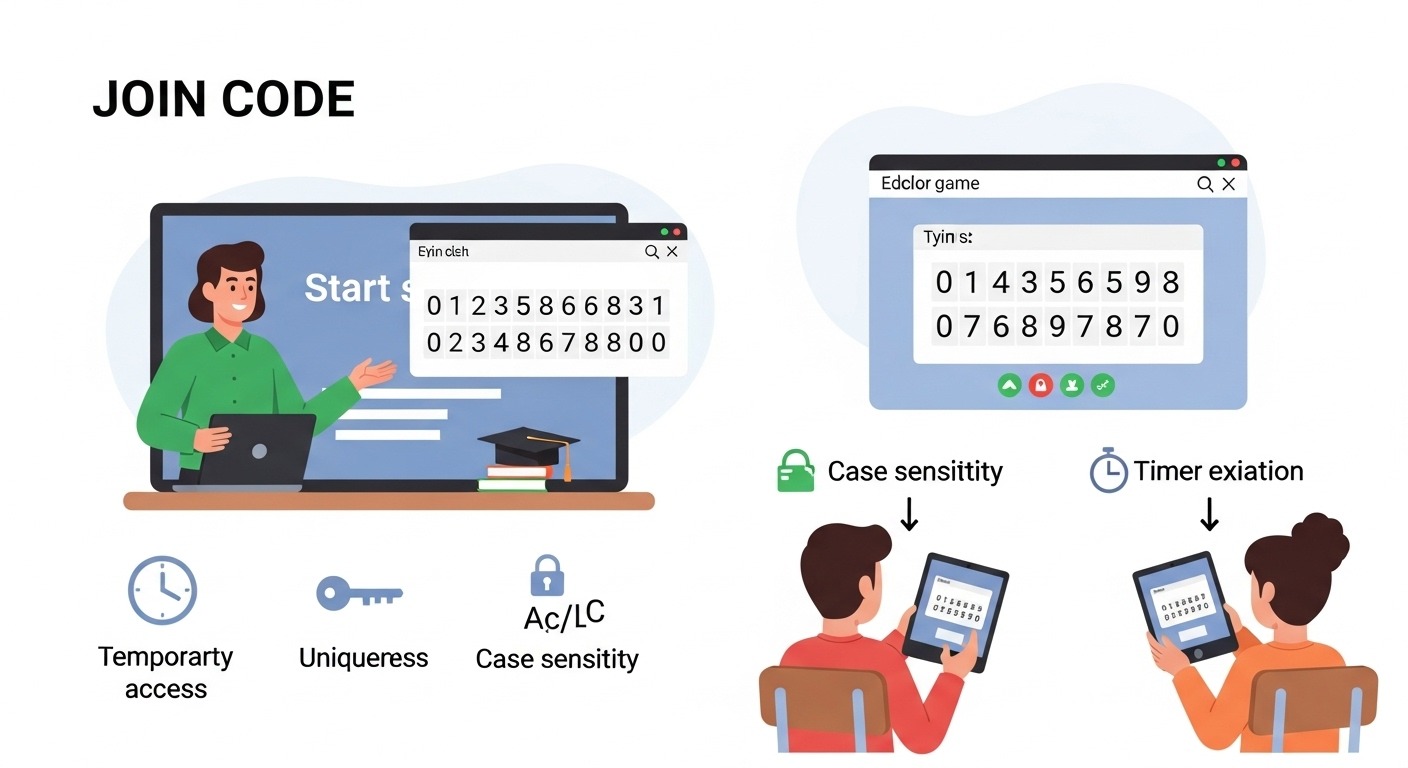
A Gimkit join code is a unique combination of numbers and letters that connects students to a specific live game session. Think of it as a temporary room key — when a teacher launches a Gimkit game, the platform generates a fresh code that students type in to enter that exact session.
Key things to know about Gimkit game codes:
- They’re temporary — codes only work while the game is actively running
- They’re unique — every game session generates its own distinct code
- They’re case-sensitive — capital and lowercase letters matter
- They expire — once the game ends, the code becomes permanently invalid
- No account required — students can join with just the code and a name
The join code system is designed for speed. No student accounts, no passwords, no profile creation. Just type the code, enter a name, and start playing. The entire process takes about 30 seconds when everything goes smoothly.
How to Join a Gimkit Game: Step-by-Step Student Instructions
Step 1: Go to gimkit.com/join
Open any web browser on your device — Chrome, Safari, Firefox, or Edge all work. Type this exact URL in the address bar:
gimkit.com/join
Go directly to this page. Don’t navigate to the Gimkit homepage and try to find the join button — the direct URL is faster and eliminates confusion.
Common URL mistakes to avoid:
- Typing “gimkit.com/joint” (extra T)
- Typing “gimkit.com/jion” (misspelling)
- Typing “gimkit/join” (missing .com)
- Going to “gimkit.com” and getting lost on the homepage
Step 2: Enter the Game Code Exactly as Displayed
You’ll see a clean screen with a text box asking for the game code. Your teacher will display this code somewhere visible — projected screen, whiteboard, or smartboard.
Type the code exactly as shown. Watch for these common mistakes:
- Numbers vs. letters: Is that a zero or the letter O? A one or lowercase L? Look carefully at each character.
- Capital letters: If the code shows “AbC123,” don’t type “abc123” — case matters.
- No extra spaces: Don’t accidentally add spaces before, after, or within the code.
- No autocorrect interference: Some devices try to “fix” the code — watch for unwanted changes.
Click the “Join” button or arrow after entering the code.
Step 3: Enter Your Name
After the code is accepted, Gimkit asks for a display name. This is how you’ll appear on the game leaderboard and how your teacher identifies your participation.
Use the name your teacher expects. If your teacher is tracking participation for credit, “Batman” or “asdfgh” won’t help them find you. Most teachers want first name, last initial, or whatever naming system they’ve established.
Follow your teacher’s specific naming instructions. Some want first names only. Some want last name, first initial. Some have a class-specific format. When in doubt, ask before typing.
Step 4: Wait in the Game Lobby
After entering your name, you’ll land in a waiting area. The game hasn’t started yet — you’re waiting for your teacher to launch it and for classmates to finish joining.
Important: Don’t refresh the page. Don’t navigate away. Don’t close the tab. Just wait. You’ll see other player names appearing as they join. When the teacher starts the game, your screen will automatically transition to gameplay.
Step 5: Start Playing
Once the game begins, questions appear on your screen. Answer them to earn in-game currency, spend that currency on upgrades and power-ups, and keep going until time runs out or the game ends.
That’s the entire process. Code → Name → Lobby → Play. About 30 seconds total when everything works correctly.
How to Create and Share a Gimkit Join Code: Teacher Instructions
Generating a Game Code
Before students can join, you need to launch a game session:
- Log in to your Gimkit account at gimkit.com
- Select a Kit (your question set) or create a new one
- Choose a game mode — Classic, Team Mode, Trust No One, Floor Is Lava, or whichever fits your lesson
- Configure game settings — duration, starting money, power-up availability, and other options
- Click to host/launch the game
Gimkit generates a unique join code the moment you launch. It appears prominently on your screen in large, projector-friendly text.
Best Practices for Displaying the Join Code
Project it large so students in back rows can read every character clearly.
Leave it visible throughout the entire joining process — don’t click away from the code screen until your lobby is full.
Read it aloud character by character while students type: “The code is: A as in apple, B as in boy, 7, 3, X as in x-ray, 2.” This catches ambiguous characters and helps students who can’t see the screen clearly.
Write it on the physical board as backup. Projectors glitch. Smartboards freeze. A handwritten backup code saves minutes of frustration.
Managing the Game Lobby
Your screen shows a lobby where student names appear as they connect. Use this to:
- Confirm everyone is connected before launching
- Spot inappropriate names and remove those players before the game begins
- Get an accurate participant count
- Identify students having trouble — if someone isn’t appearing, they need help
Don’t start the game until at least 80–90% of your class appears in the lobby. Launching too early leaves struggling students frustrated and permanently behind. Give it 2–3 minutes for everyone to connect.
Gimkit Join Code Not Working: Complete Troubleshooting Guide
“Invalid Code” or “Game Not Found” Error
The code was typed incorrectly. This is the #1 cause of join failures. Have the student:
- Clear the text box completely
- Look at each displayed character individually
- Type slowly and deliberately
- Check for accidental spaces before, after, or within the code
- Verify they’re distinguishing zeros from O’s and ones from L’s
The game hasn’t launched yet. Codes only activate when the teacher has actually started the game session. If the teacher is still configuring settings, the code won’t work yet. Wait and try again.
The game already ended. Codes expire permanently when games finish. If the session concluded, that code will never work again. The teacher needs to start a new game with a new code.
You’re looking at an old code. Sometimes yesterday’s code is still visible on a whiteboard or projected screen. Confirm with your teacher that you’re seeing the current, just-generated code.
Stuck on the Loading Screen
Refresh the page. Browsers occasionally hang during loading. A simple page refresh fixes most loading issues instantly.
Check your internet connection. Gimkit requires a stable connection. If your WiFi is spotty or your signal is weak, the page may not load properly. Try moving closer to the router or switching networks.
Try a different browser. If Chrome isn’t working, open Firefox, Edge, or Safari. Browser-specific glitches happen occasionally and switching usually resolves them.
Clear your browser cache. Stored data from previous sessions sometimes causes conflicts. Clear cache and cookies, then reload gimkit.com/join.
Try incognito/private browsing mode. This disables extensions and cached data that might interfere with loading. If it works in incognito mode, a browser extension is likely causing the problem.
Disconnected or Kicked Out Mid-Game
Your internet connection dropped. Gimkit requires continuous connectivity. Even a brief WiFi interruption can disconnect you from an active session.
The teacher ended the game. If the session is over, there’s nothing to rejoin.
Try rejoining immediately. If the game is still running, go back to gimkit.com/join, enter the same code, and re-enter your name. You’ll often reconnect successfully, though you may lose accumulated progress and in-game currency.
“Everyone Else Got In But I Can’t”
Check your network. Are you on a different WiFi network than classmates? Are you on cellular data while others are on school WiFi? Network differences cause different results.
Try incognito/private mode. This rules out extension or cache conflicts specific to your browser.
Try a different device. If available, test whether the problem is device-specific. If a phone works but your Chromebook doesn’t, the issue is with the Chromebook’s browser or network settings.
Ask your teacher to check their lobby. Sometimes your name actually appears in the teacher’s lobby even though your screen looks stuck. The teacher can confirm whether the connection registered on their end.
Teacher-Side Join Code Problems
“My code won’t display” → Make sure you’ve fully launched the game session, not just previewed or configured it. The code generates only when the game actually starts.
“Students see a ‘game is full’ error” → Some game modes or account types limit participant counts. Check your Gimkit plan’s restrictions and current mode settings.
“A student’s name doesn’t appear in my lobby” → They may have typed an unexpected name. Ask what they entered. Alternatively, they might not have completed the full join process — have them start over from gimkit.com/join.
How to Join Gimkit on Different Devices
Joining Gimkit on a Chromebook
Chromebooks are the most common student device in schools, and Gimkit runs seamlessly on them.
- Open Chrome (likely your only browser option)
- Type gimkit.com/join in the address bar
- Enter the game code and your name
- Wait in the lobby, then play
Chromebook-specific tips:
- Make sure you’re signed into the device with your school account
- If the keyboard seems unresponsive, click directly inside the text box first
- Chromebook trackpads can be unreliable — use an external mouse if available
- Close unnecessary tabs to free up processing power
Joining Gimkit on an iPad or Android Tablet
Tablets work well for Gimkit, with slightly different touch interactions.
- Open Safari (iPad) or Chrome (Android tablets)
- Navigate to gimkit.com/join
- Tap the code field — the on-screen keyboard will appear
- Enter the code and name, then tap Join
Tablet-specific tips:
- Turn the tablet horizontal/landscape for a much better gameplay experience
- Make sure the on-screen keyboard doesn’t cover the Join button — scroll down if needed
- Safari on iPad sometimes autocorrects code entries — watch for unwanted text changes
- Keep the screen brightness up so you can read questions easily
Joining Gimkit on a Phone
Phones aren’t ideal due to screen size, but they work perfectly as backup devices.
- Open your browser (Chrome, Safari, or any modern browser)
- Go to gimkit.com/join
- Enter code and name
- Turn the phone sideways/landscape for better gameplay
Phone-specific tips:
- The small screen makes some game modes harder to navigate
- Battery drain can be significant during longer sessions — plug in if possible
- Data usage is moderate but worth noting if you’re not on WiFi
- Autocorrect and predictive text can change your code entry — type carefully
Joining Gimkit on a Laptop or Desktop Computer
The most straightforward experience. Any modern, updated browser works.
Desktop/laptop tips:
- Chrome tends to perform best with Gimkit
- Make sure pop-up blockers aren’t interfering with the game interface
- Full-screen your browser window for the best visual experience
- Close unnecessary tabs and applications to keep things running smoothly
Different Ways to Access Gimkit Games (Not All Use Join Codes)
Live Classroom Games (Join Code Required)
The most common scenario. The teacher launches a game, displays the code, and students join from their devices in real time. Everyone plays simultaneously, and the game ends when the teacher stops it or time expires.
For students: You need the code visible or communicated in the moment. Join quickly so you don’t miss playing time.
For teachers: Build in 2–3 minutes of connection time before the learning portion begins. Rushing the join process causes more problems than it prevents.
Gimkit Homework Assignments (Usually No Join Code)
When teachers assign Gimkit for homework, the process works differently:
- The teacher creates an assignment through Gimkit, typically linked through Google Classroom, Canvas, or another learning management system
- Students click the assignment link rather than entering a join code
- Students may need Gimkit accounts for assigned work (unlike live code-based games)
For students: Follow the specific link your teacher provides instead of looking for a code. You might need to log in before playing.
Independent Practice and Self-Study (No Join Code)
Students with Gimkit accounts can practice using kits their teachers have shared or kits found in Gimkit’s public library. This doesn’t involve join codes — you log into your account and access practice materials directly.
School Tournaments and Competitions (Special Instructions)
Some schools run Gimkit competitions across multiple classes or grade levels. These might use standard join codes with coordinated timing, special tournament configurations, or scheduled sessions where the code is released at a specific moment. Follow whatever instructions your event organizers provide.
Gimkit Join Code FAQ: Quick Answers to Common Questions
Do I need a Gimkit account to join a live game?
No. Join-code sessions are completely account-free. Enter the code, type a name, and play. Account-free access is one of Gimkit’s biggest advantages for classroom use.
Can I save my game progress without an account?
No. Join-code sessions are temporary by design. Nothing saves to a profile because you’re not logged into one. For saved progress and history, you need a Gimkit account.
Can I join a Gimkit game after it already started?
Usually yes. Most game modes allow late entry. You’ll have less time than classmates who joined at the start, but you can still participate and earn points.
What happens if I accidentally close my Gimkit tab?
Go back to gimkit.com/join, enter the same code, and type your name again. You’ll often rejoin successfully, though you may lose any accumulated progress, in-game money, or upgrades.
Can a Gimkit join code be used twice?
No. Each game session generates a unique code. When that game ends, the code expires permanently. Starting a new game always creates a new code.
Is there a player limit for Gimkit games?
Depending on the game mode and account type, there may be participant limits. Pro/paid accounts support higher player counts than free accounts. Most standard classroom sizes fall within typical limits.
Can I join a Gimkit game from home?
Yes. If the game is actively running and you have the valid code, location doesn’t matter — only internet connectivity and the correct code.
Why do Gimkit codes have random combinations of letters and numbers?
To ensure uniqueness. With thousands of games running simultaneously across all Gimkit users worldwide, codes need enough character variety to prevent collisions. The mix of letters and numbers provides millions of possible unique combinations.
Join Code Security Tips for Teachers
Anyone with the code can join your game. Join codes aren’t password-protected beyond the code itself. If a student shares the code outside your classroom — texting friends in other classes, posting it online — unauthorized players could enter your session.
Always monitor your lobby before launching. Look for unfamiliar, unexpected, or inappropriate names before starting the game. You can remove players from the lobby.
Codes expire automatically by design. Because codes become invalid when games end, there’s no long-term security risk. Someone who discovers an old code can’t do anything with it.
For graded assessments, consider account-based sessions. If you’re using Gimkit for work where student identity verification matters, account-based sessions provide better authentication than join-code sessions where anyone can type any name.
How to Make Gimkit Join Codes Part of Your Classroom Routine
Teachers who use Gimkit regularly develop efficient systems that minimize daily friction:
Establish a consistent routine. When students know that every Friday review happens on Gimkit, the URL becomes second nature. They’ll navigate to gimkit.com/join automatically without being told.
Post permanent instructions. Some teachers display a small poster or slide with standing instructions: “For Gimkit: 1) Go to gimkit.com/join 2) Enter code from board 3) Use first name, last initial.” This eliminates repetitive verbal instructions.
Designate student tech helpers. Assign tech-comfortable students to assist struggling classmates rather than handling every connection issue yourself. Peer troubleshooting is faster and builds student leadership.
Build connection time into your lesson plan. Plan for 2–3 minutes of join time before the educational content begins. Don’t expect instant readiness — building in buffer time prevents frustration and wasted learning minutes.
Set naming expectations before devices open. Tell students your naming format before they start typing. Retroactively fixing 25 creative-but-unrecognizable display names wastes everyone’s time.
When Gimkit Is Completely Down: What to Do
Occasionally, problems go beyond individual troubleshooting.
Gimkit’s servers are experiencing an outage. Like any web platform, Gimkit occasionally goes down entirely. If nobody in the building can access the site, check Gimkit’s social media accounts or status pages for outage reports. Have a non-technology backup activity ready for these moments.
Your school network blocks Gimkit. Some school content filters categorize Gimkit as a gaming site and restrict access. If Gimkit is blocked district-wide, talk to your IT department about whitelisting gimkit.com as an approved educational tool. Bring documentation of its educational purpose.
Browsers are hopelessly broken. Extremely outdated browsers or heavily modified browser configurations sometimes can’t run Gimkit properly. The solution is almost always switching to a standard, fully updated version of Chrome, Firefox, or Edge.
Nothing works after exhaustive troubleshooting. Contact Gimkit’s support team with specific details: what device, what browser, what error message, what you’ve already tried. They can investigate server-side issues that aren’t visible from the user end.
Gimkit Join Code Quick Reference Card
Students — 5 Steps
- Open browser → go to gimkit.com/join
- Type the game code exactly as your teacher displays it
- Enter your real name (or whatever format your teacher requires)
- Wait in the lobby — don’t refresh or navigate away
- Play when the game launches automatically
Teachers — 6 Steps
- Log in to Gimkit and select your question kit
- Choose your game mode and configure settings
- Launch/host the game
- Display the generated code prominently for your class
- Monitor the lobby until 80–90% of students appear
- Start the game when ready
The Bottom Line on Gimkit Join Codes
Join codes are elegantly simple by design — a short string of characters that connects students to learning games with zero friction. No accounts to create, no passwords to remember, no complex login sequences standing between students and content practice.
When problems occur, they’re almost always minor: a typo in the code, a timing mismatch, or a browser hiccup. Systematic troubleshooting resolves the vast majority of issues within seconds.
The system works because it prioritizes speed and accessibility over security complexity. Any student, on any device, with any browser can join a live Gimkit game in under 30 seconds — and that low barrier to entry is exactly what makes the platform so practical for real classroom use.
Type the URL. Enter the code. Enter your name. Play.
It really is that straightforward. Now stop reading about joining and go actually join — your teacher’s been waiting.